Google Analytics MCP for Claude Code: setup guide
Set up the Google Analytics MCP server in Claude Code. Create a desktop OAuth client, authenticate with gcloud, and query GA4 from any Claude Code session.
The Google Analytics team publishes analytics-mcp, an MCP server that lets Claude Code list your GA4 properties and run reports against them. Once it’s wired up, you can ask Claude things like “which posts drove the most signups last week” and get a real answer based on your actual data.
Authentication goes through your own Google account using Application Default Credentials, so there’s no service account key file to manage or rotate.
Tutorial setup 4 prerequisites
- Claude Code — installed and working from your terminal.
- gcloud CLI — installed and signed in. See Install gcloud on Mac if you do not have it yet.
- pipx — installed so
pipx run analytics-mcpcan fetch and run the server. On macOS,brew install pipxis the quickest way. - A Google Cloud project — with both the Google Analytics Admin API and Google Analytics Data API enabled.
Step-by-step guide
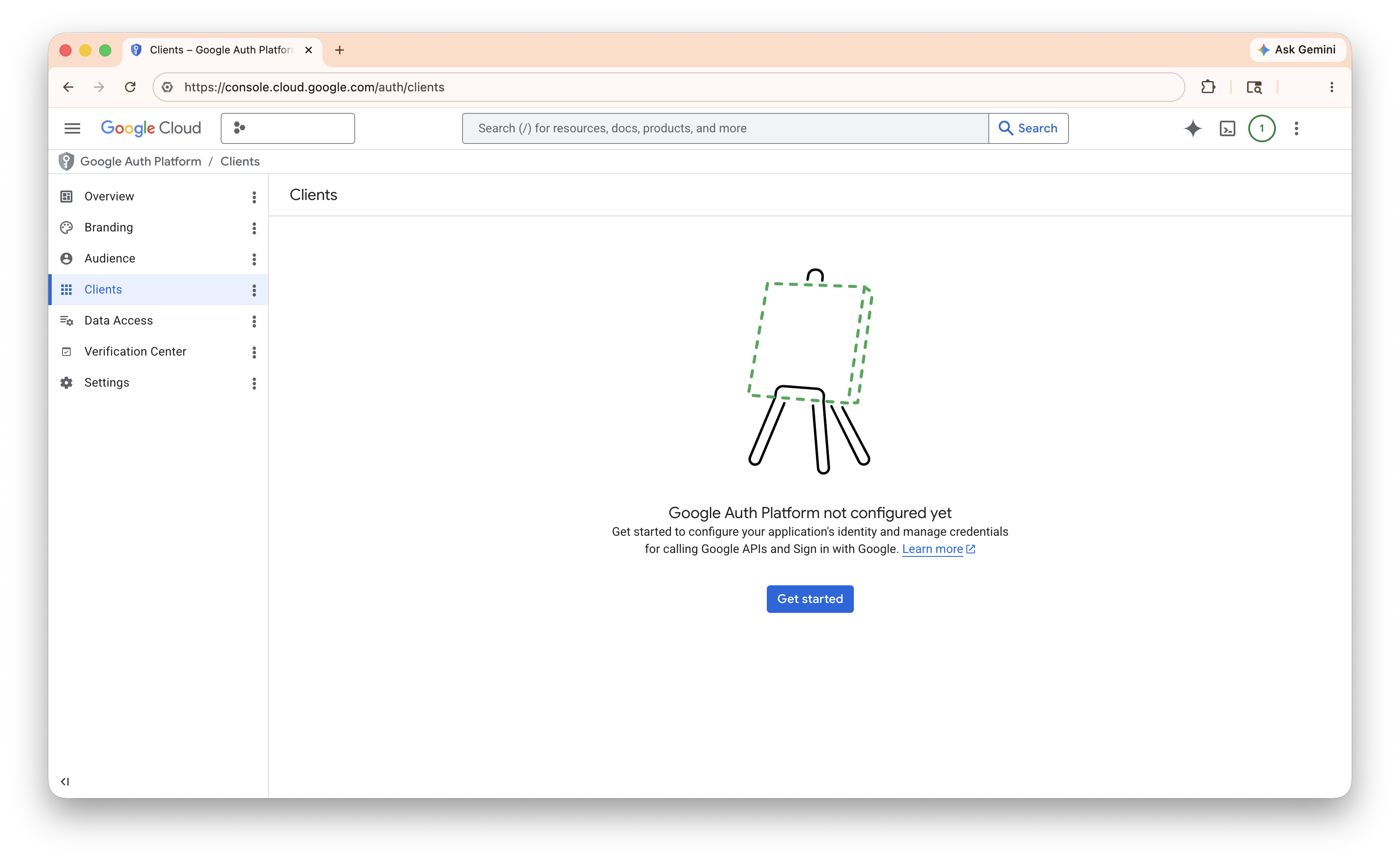
Step Open the OAuth overview and click Get Started
Start the OAuth setup in Google Cloud Console.
Open console.cloud.google.com/auth/overview and click Get Started.
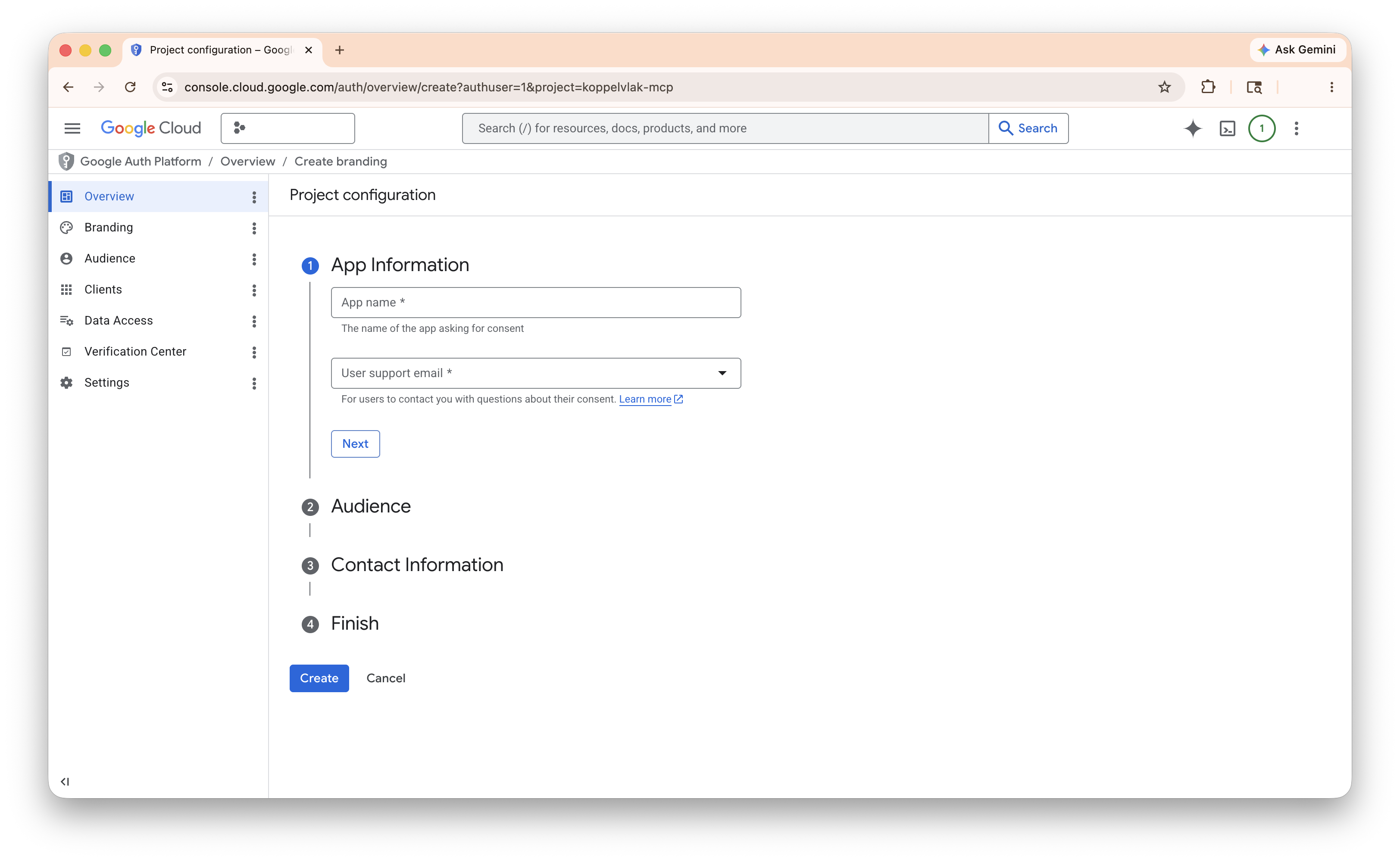
Step Fill in your app name and support email
This just identifies the OAuth app to you. It is not made public.
Fill in an app name and a user support email. This information is not made public. It just identifies the OAuth app to you.
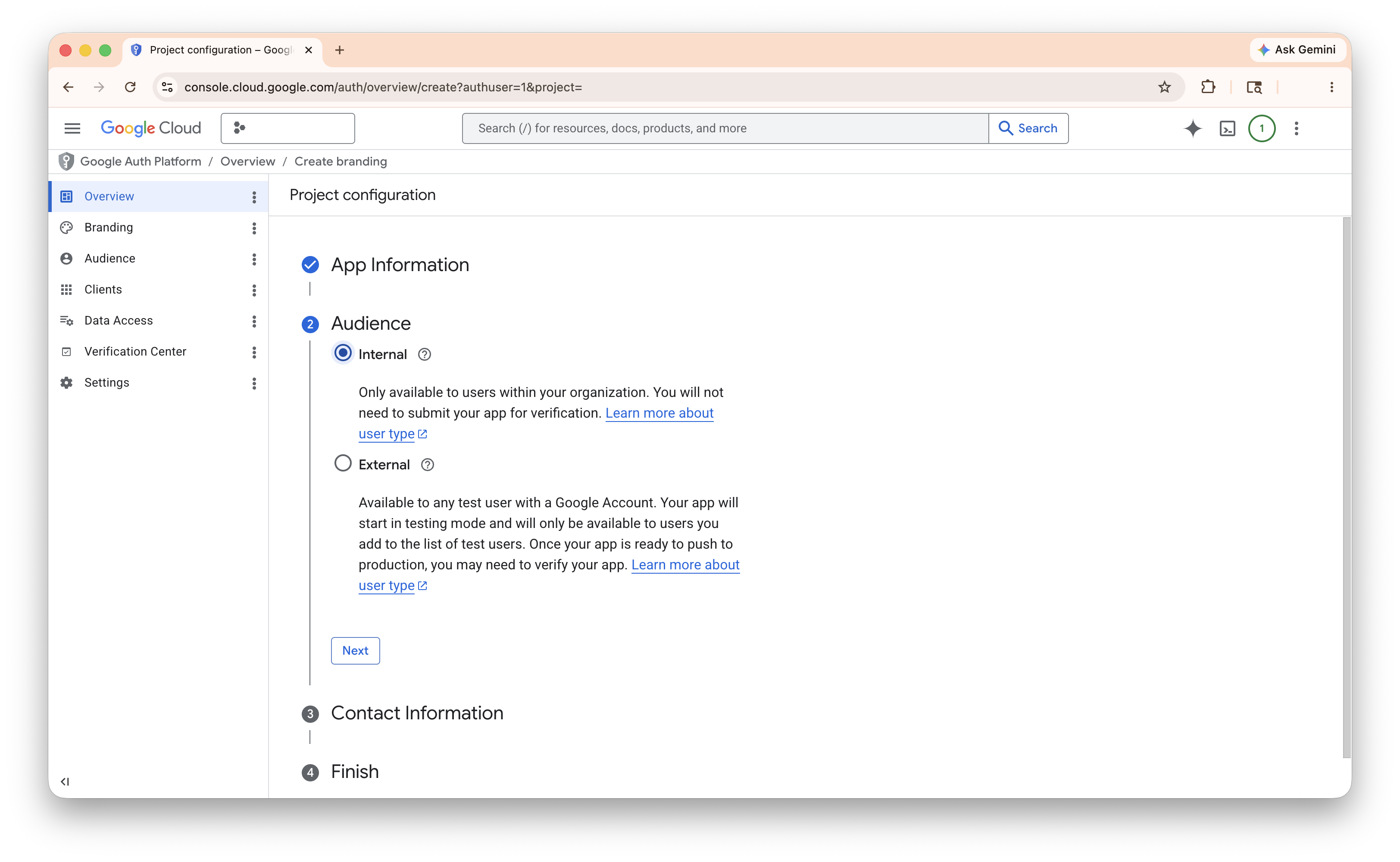
Step Select Internal
Restrict the OAuth app to your Google Workspace organization.
Choose Internal as the user type. This restricts the OAuth app to users inside your Google Workspace organization, which is what you want for a personal developer tool.
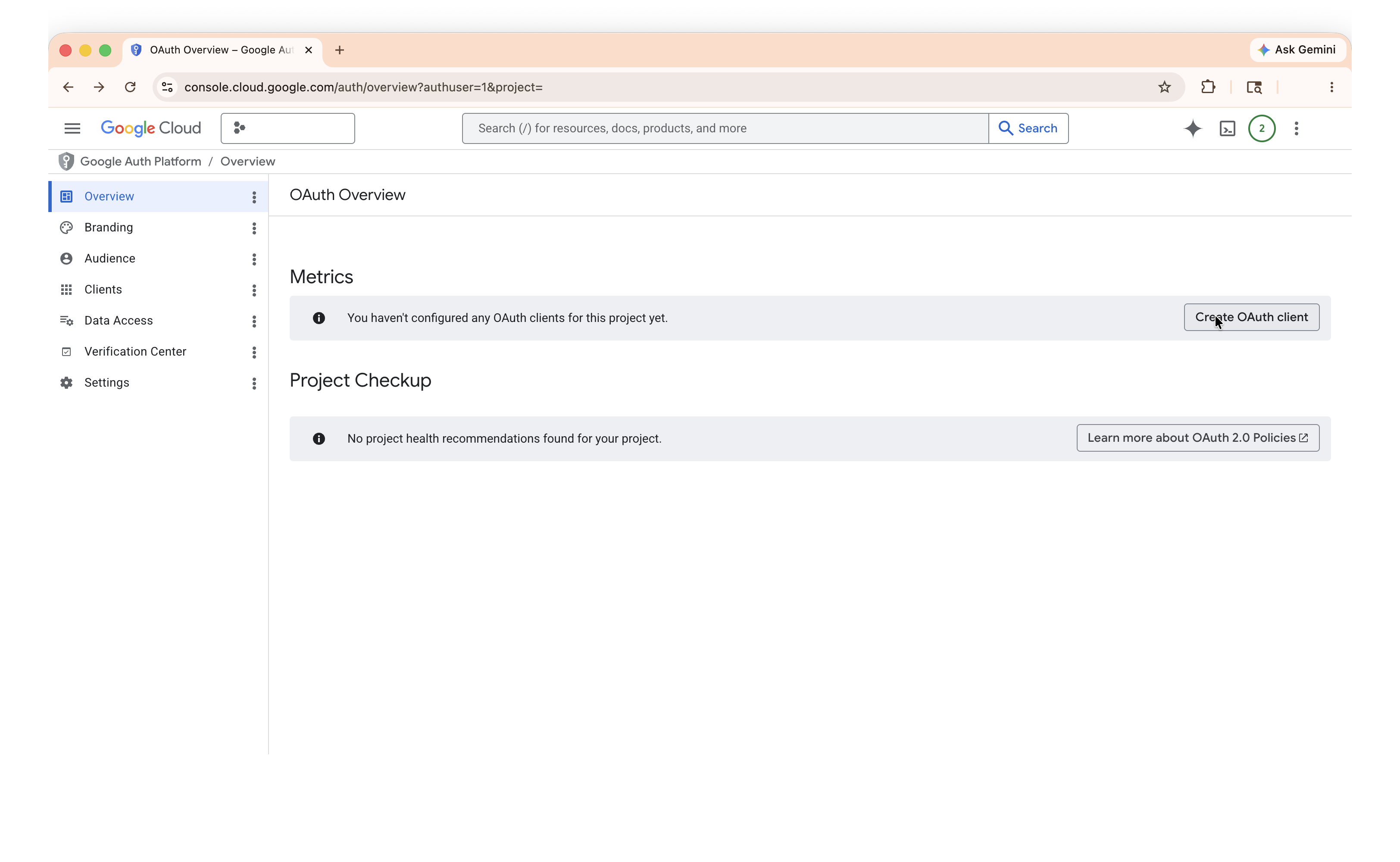
Step Create the OAuth client
Add a Desktop client to the app you just created.
Your OAuth app exists. Now create an OAuth client for it. Click Create OAuth Client.
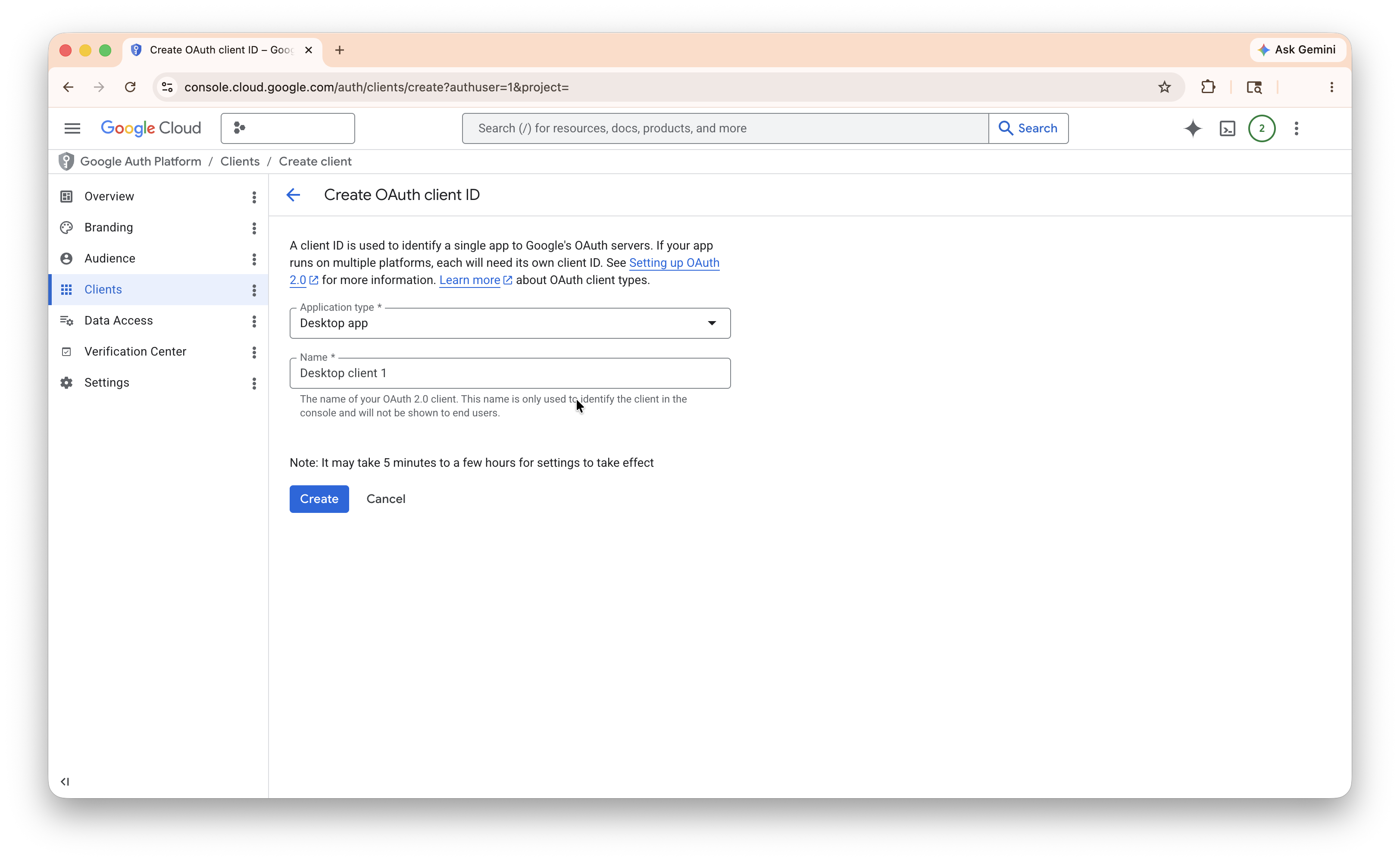
When asked for the application type, choose Desktop app and name the client something like
analytics-mcp. Click Create.Step Download the client JSON
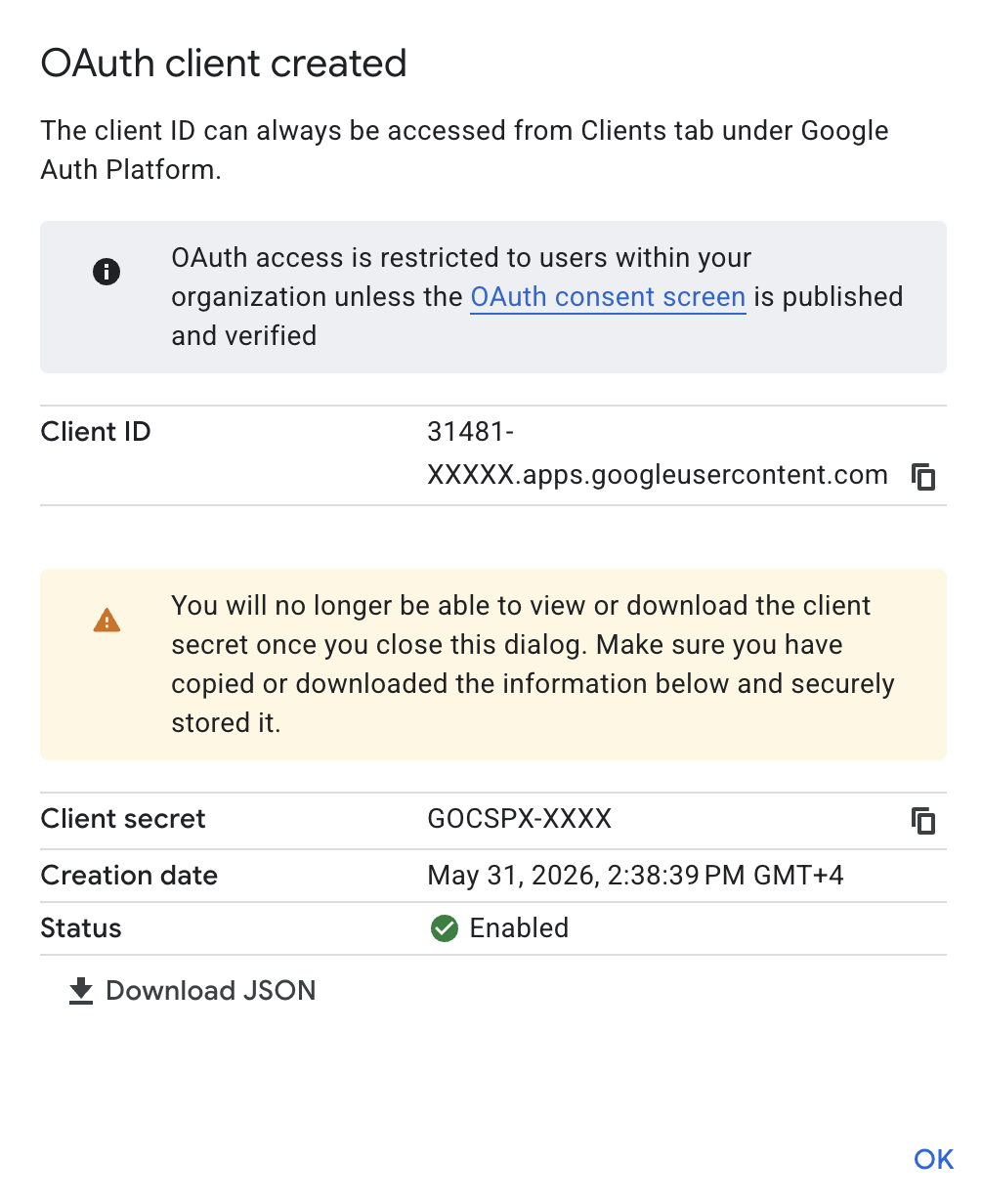
Grab the credentials file to your Downloads folder.
After creating the client, you’ll see a screen offering the client JSON. Download it to your Downloads folder. You’ll move it in the next step.
Step Move the client JSON into ~/.mcp
Stage the file where the login command can find it.
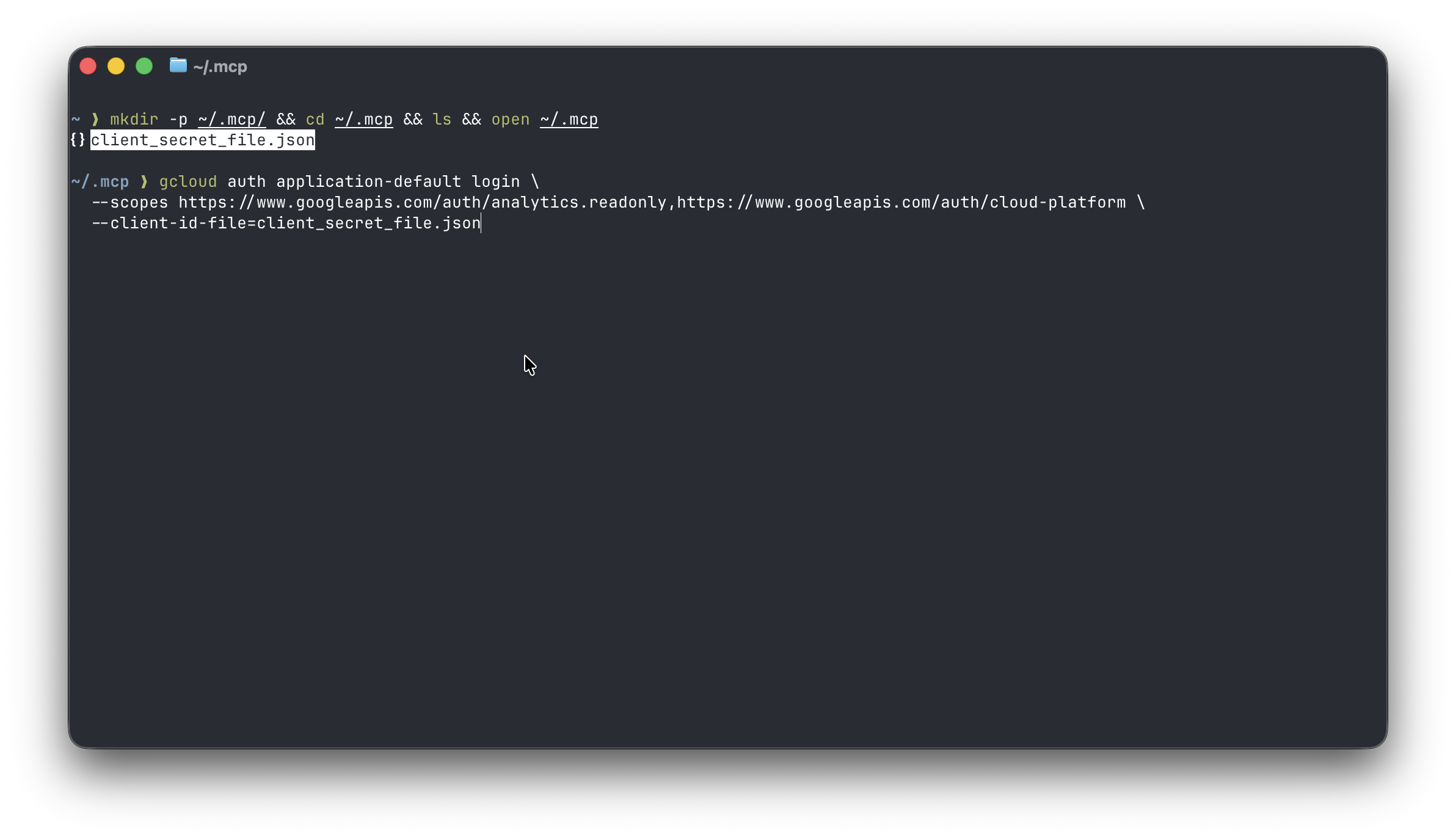
Open a terminal and run:
mkdir -p ~/.mcp/ && cd ~/.mcp && ls && open ~/.mcpDrag and drop the downloaded client JSON into the Finder window that just opened.
Step Run gcloud auth application-default login
Mint Application Default Credentials scoped to the Analytics APIs.
Back in the terminal, run the following command. Replace
YOUR_CLIENT_JSON_FILE.jsonwith the actual filename you just moved into~/.mcp/. It starts withclient_and ends with.json, and will show in thelsoutput from the previous step.gcloud auth application-default login \ --scopes=https://www.googleapis.com/auth/analytics.readonly,https://www.googleapis.com/auth/cloud-platform \ --client-id-file=/Users/YOUR_USER/.mcp/YOUR_CLIENT_JSON_FILE.jsonExecute the command and complete the browser login.
Step Copy the credentials path
You'll point the MCP server at this file next.
When the command completes, copy the credentials file path printed to the console:
Credentials saved to file: [PATH_TO_CREDENTIALS_JSON]You’ll need it in the next step. On macOS this is almost always
~/.config/gcloud/application_default_credentials.json.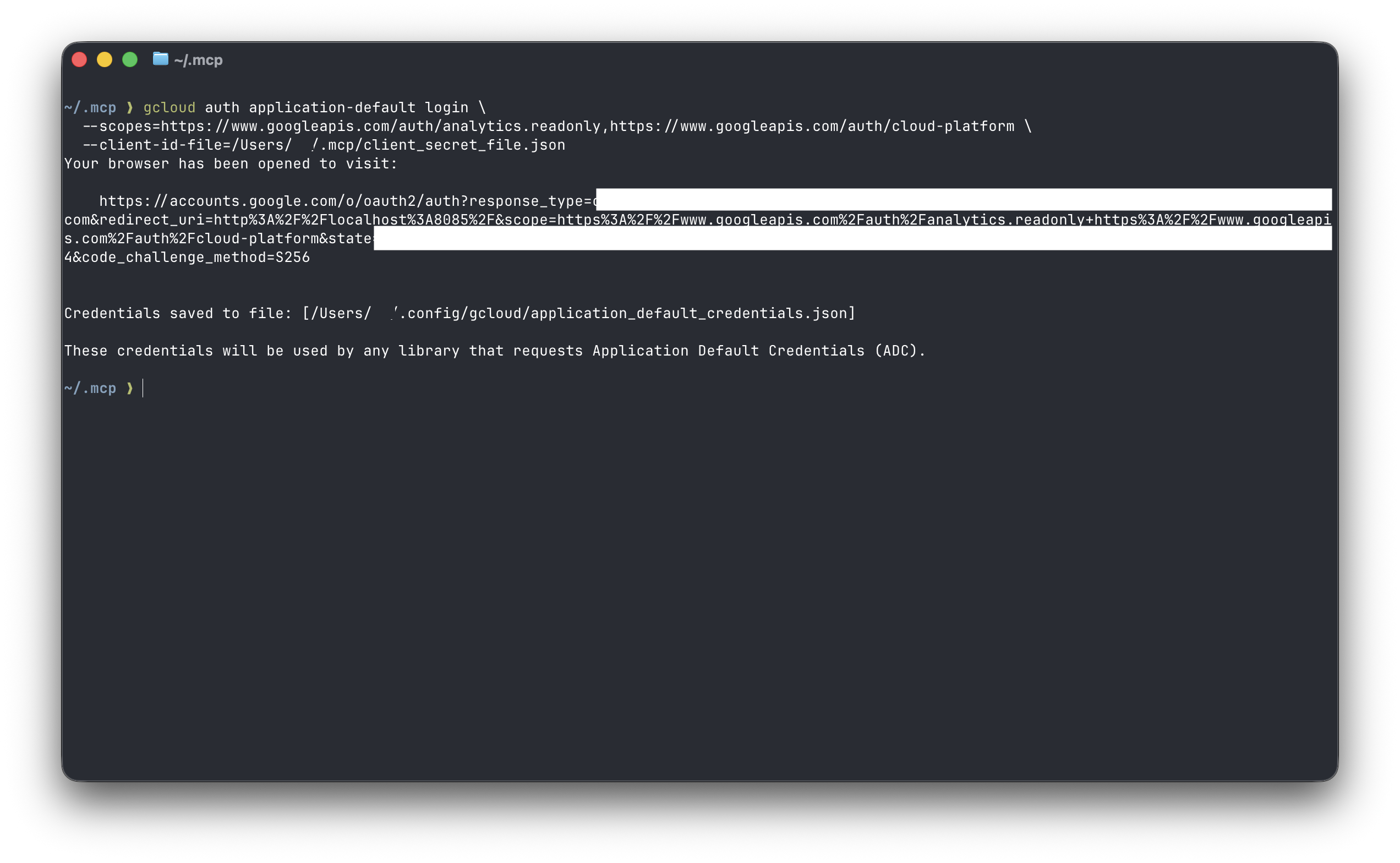
Step Register the MCP server
Add analytics-mcp so it's available in every Claude Code session.
Run this in your terminal:
claude mcp add analytics-mcp \
  --scope user \
  -e "GOOGLE_APPLICATION_CREDENTIALS=/Users/YOUR_USER/.config/gcloud/application_default_credentials.json" \
  -e "GOOGLE_PROJECT_ID=YOUR_PROJECT_ID" \
  -- pipx run analytics-mcp
--scope userregisters the server in your user-level Claude Code config so it shows up in every project.pipx run analytics-mcpfetches and runs the latest published server without a global install.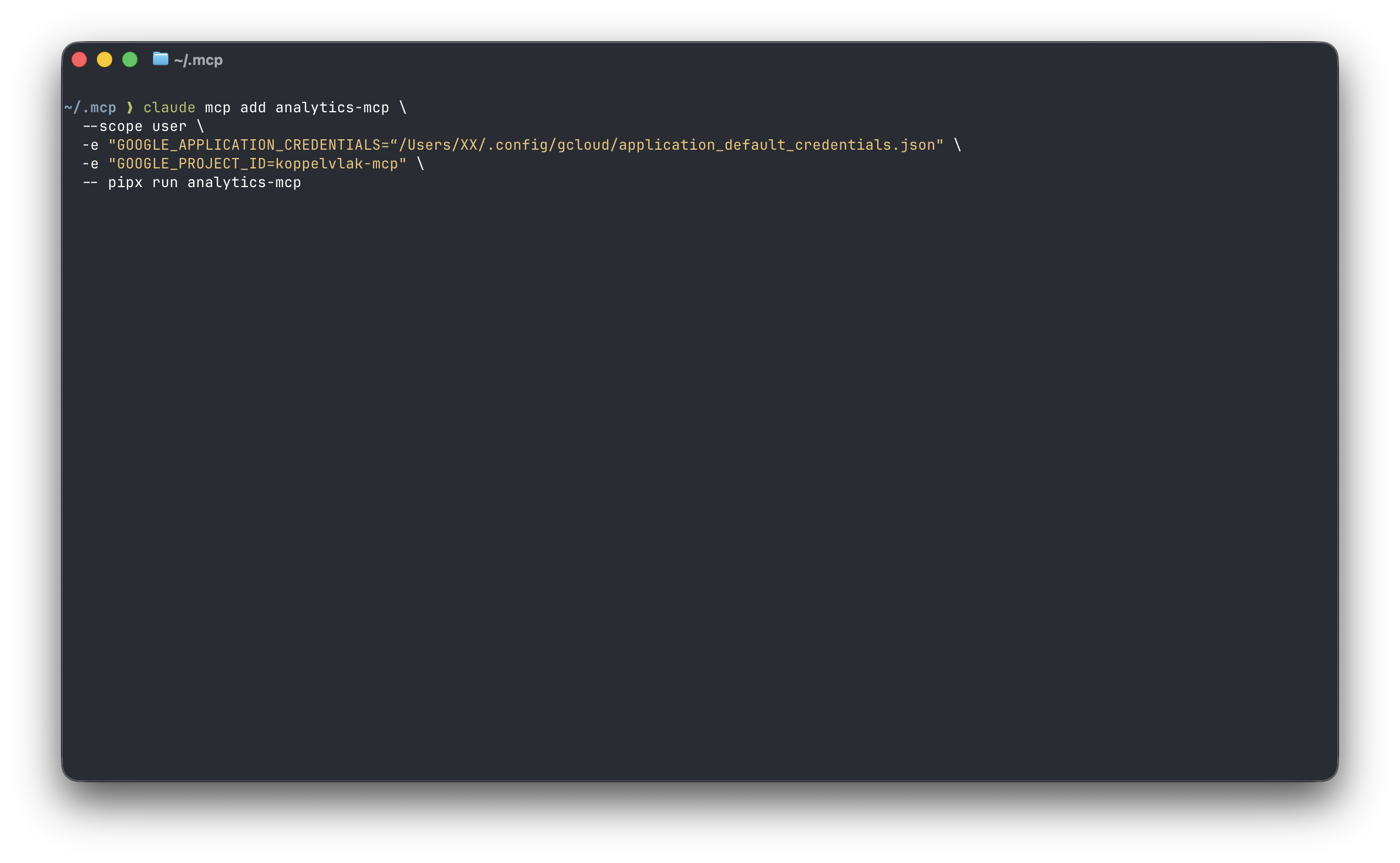
Check it works
In a Claude Code session, run /mcp. You should see analytics-mcp in the list with a green connected status.
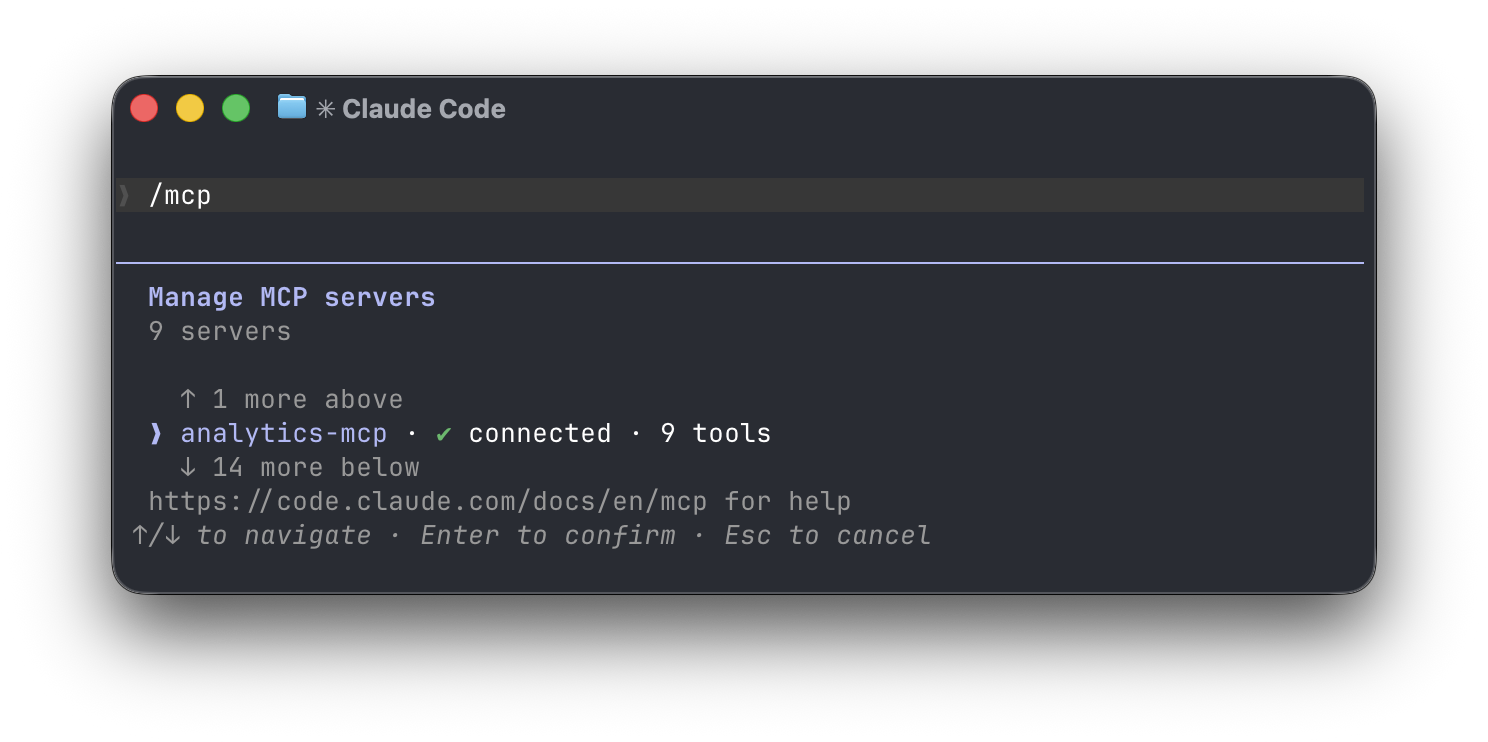
Then ask it something like:
What Google Analytics sites do you see?
Claude should call the analytics-mcp server and come back with the same list of properties you’d see in the GA UI. If you see fewer properties than expected, that’s an access issue on the Google account you authed with, not the MCP setup.
Related articles
Connect Tableau Server to Claude Code via MCP + PAT
Wire Claude Code into Tableau Server using the official MCP server, authenticated with a Personal Access Token — list workbooks and views from chat.
Connect Claude Code to BigQuery in 2 steps with MCP
Wire Claude Code into BigQuery with Google's prebuilt MCP toolbox in two steps — list datasets, inspect schemas, and run SQL from any session.
Give Claude Code system-wide memory with CLAUDE.md
Put your KPIs, role, and writing style in one file at ~/.claude/CLAUDE.md and Claude Code reads it on every prompt — across every project.